Text
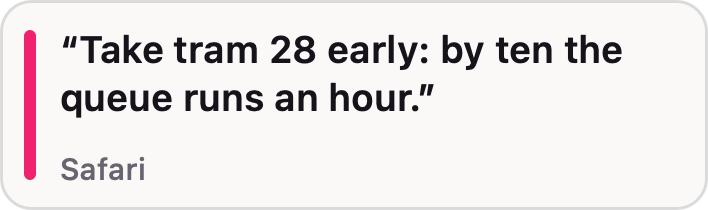
Select the sentence that matters.
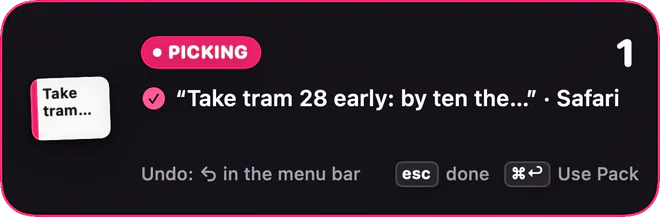
Just the part you need, not the whole page. Tap one.
Travel notes · Safari
Three days in Lisbon
Pick text, files and images from different apps. PIKY brings them together in one Pack, ready to add to your AI chat or message with one shortcut.
A Mac app No account required Free early access · macOS 14 or later · Apple silicon
Illustration
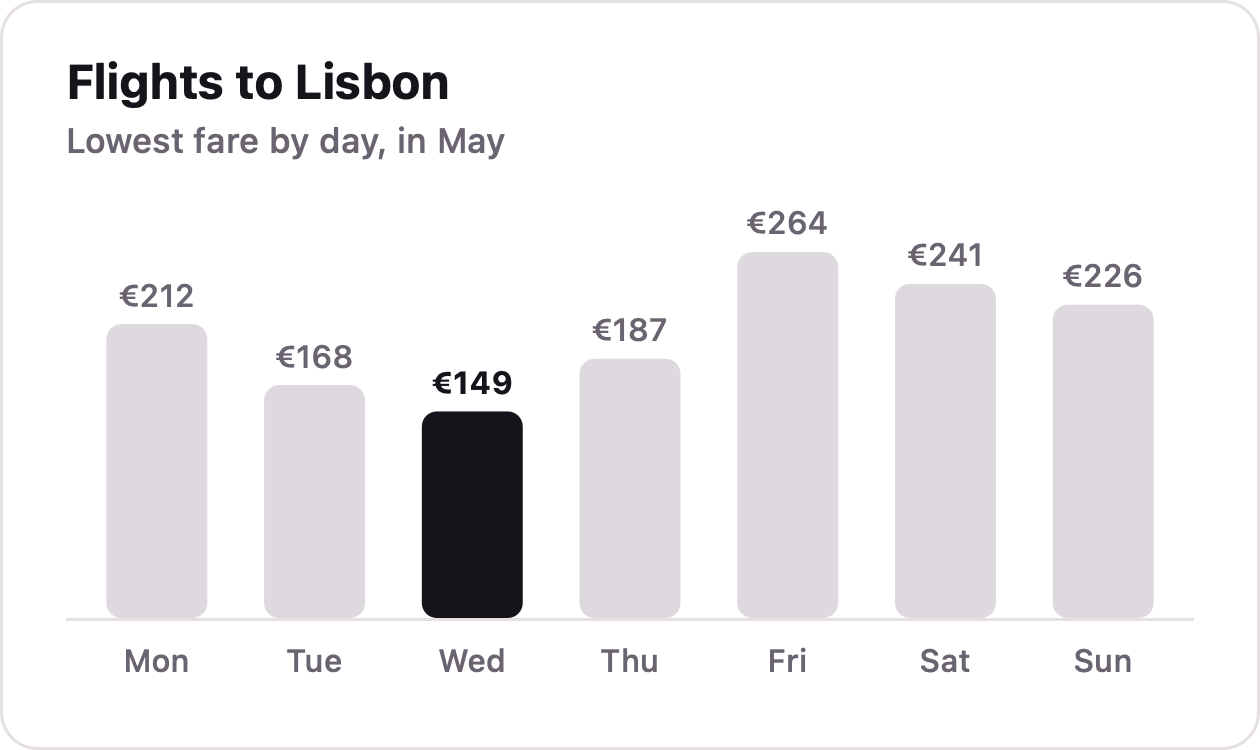
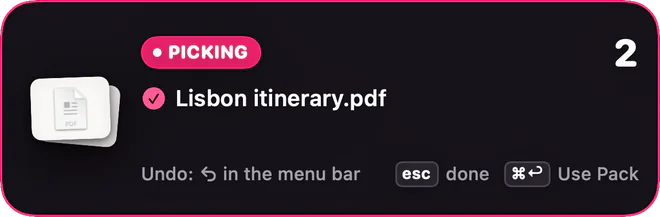
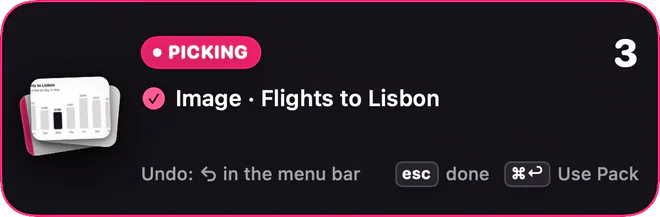
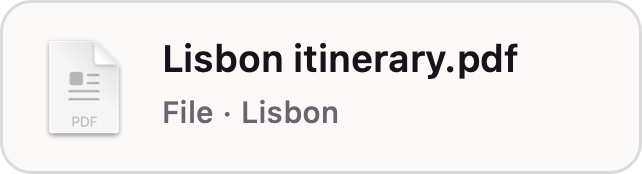
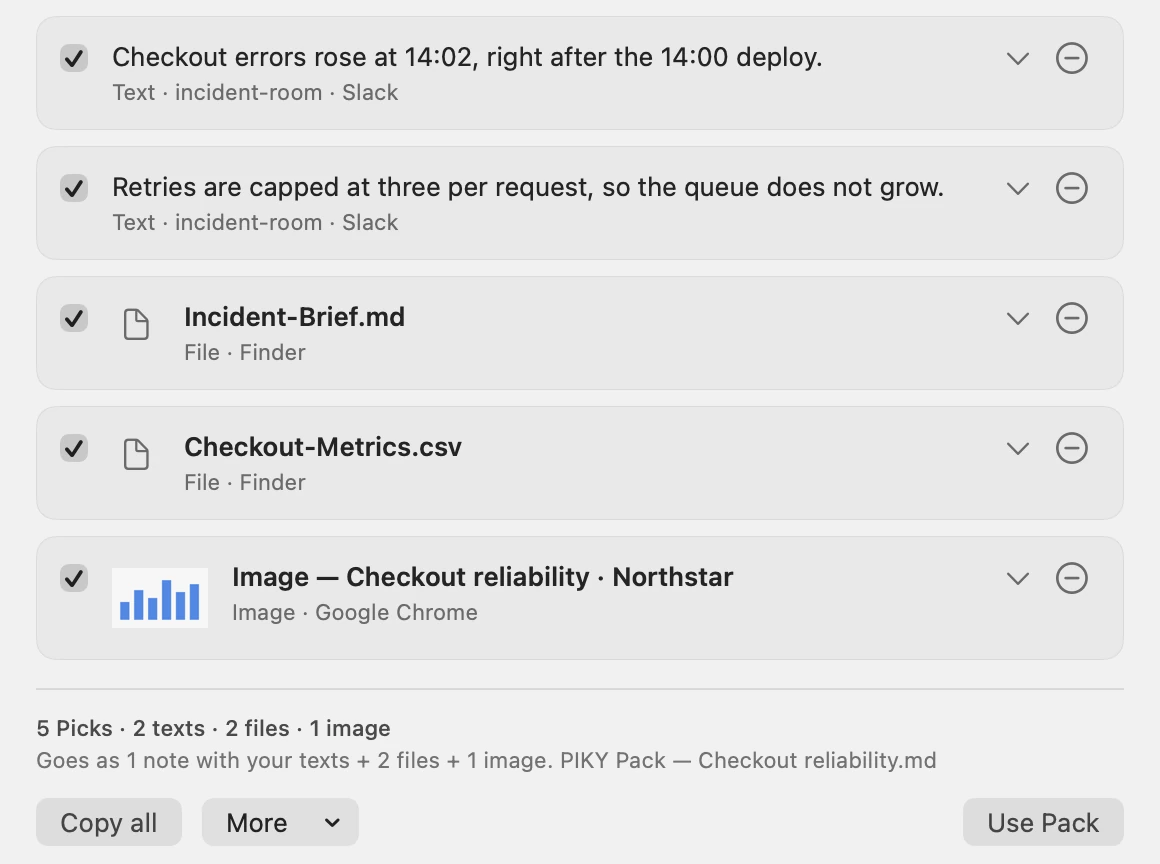
A sentence from a page of Lisbon travel notes, the PDF Lisbon itinerary.pdf in Finder and the chart Flights to Lisbon, taken with Camera, each become a Pick. PIKY’s card counts them into one Pack, named Lisbon itinerary. Command + Return adds the Pack to a chat draft as PIKY Pack — Lisbon itinerary.md, Lisbon itinerary.pdf, Flights to Lisbon.png. It waits there, unsent, until you press Send.
A sentence, a PDF, part of a chart.
PIKY keeps them together.
One shortcut adds it all.
How it works
Copy, switch, paste. Screenshot, find, attach. Every piece is a small detour, and together they become a task of their own. With PIKY, it’s one pass.
Press Option + Space, wherever you are.
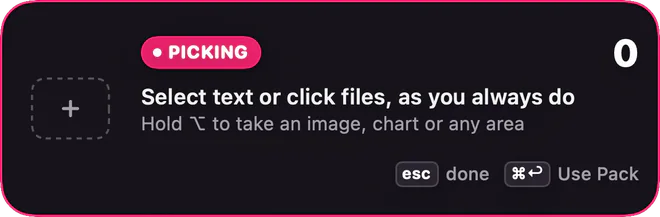
Select a paragraph. Click a PDF in Finder. Hold Option and click a chart. Each one becomes a Pick.
Click in your draft and press Command + Return. Everything goes in together. You press Send.
PIKY works in supported apps. App and file support vary, and each app sets its own attachment limits. PIKY says what it offered and what it saw opened. Check your draft before you send.
In the real app
A real recording, shortened: three files, a paragraph and a chart, picked across apps and added to a Codex draft that waits for you.
Camera
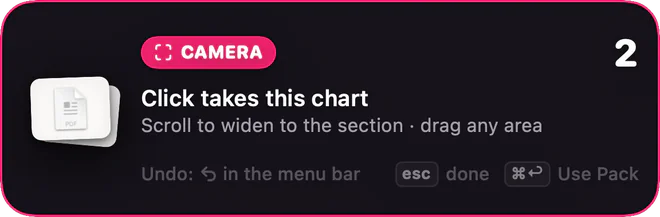
A chart, a photo, a card, part of a page. No screenshot to save, find and attach: while Picking, hold Option, and pink corners show what a click keeps.
Try it
Tap a sentence, a file and the chart, remove what you don’t need, then use your Pack. A playful stand-in for the real app.
Text
Just the part you need, not the whole page. Tap one.
Travel notes · Safari
Three days in Lisbon
Files
PDFs, documents and images from Finder join the same Pack.
Camera
Pink corners show what Camera keeps. Just that part.
Your Pack
Your Pack will appear here.
Help me plan three days in Lisbon.
In the real app: Command+Return
How it arrives: texts travel together in one note, before your files and images. Text-only Packs paste as text. PIKY never presses Send.
Library
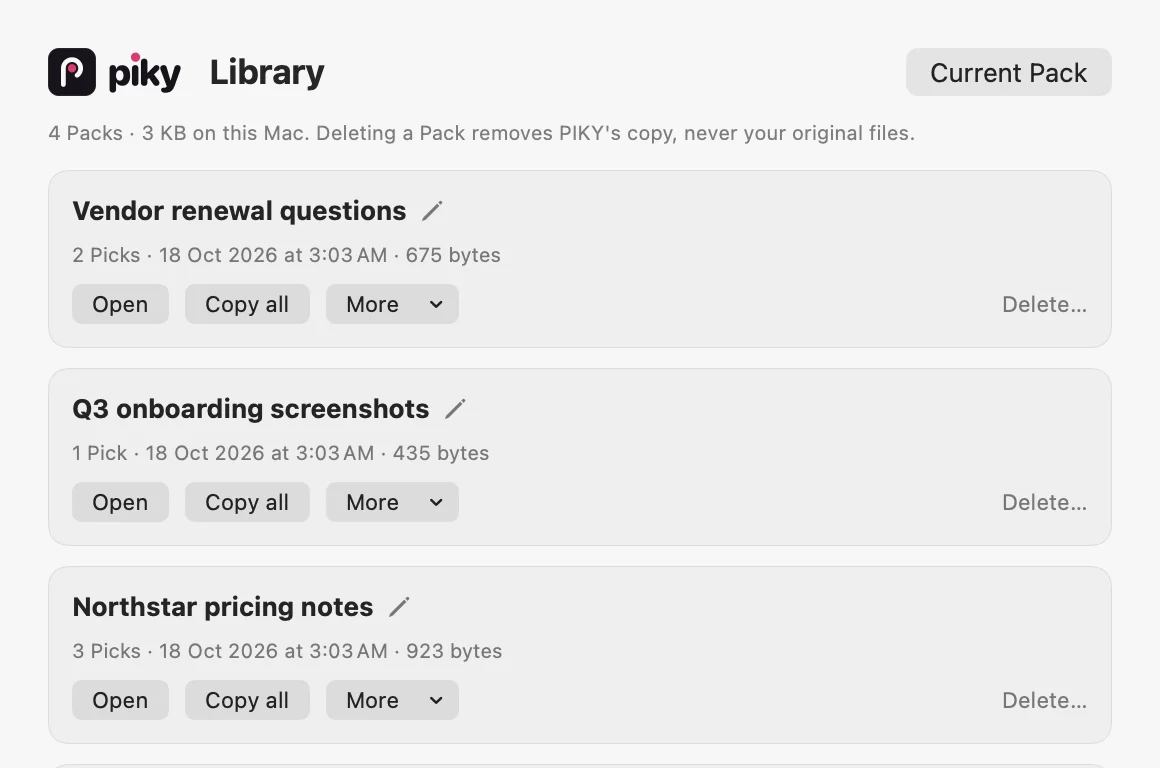
PIKY keeps your Packs on your Mac. Start a new one and the last moves to your Library, ready when you come back to the task. No gathering from scratch.
Your choices, your Mac
Nothing is collected until you start Picking and choose it. Camera keeps only the area you click or drag. Nothing is recorded continuously.
No account or cloud storage in PIKY. Your Packs stay on your Mac until you delete them. PIKY itself makes no network connections.
Use Pack gives a copy to the supported app you choose. PIKY shows what it handed over; check attachments and upload errors before you send. PIKY never presses Send.
The other app handles its copy under its own terms. Deleting your Pack doesn’t delete that copy. A pasted Pack stays on your clipboard until you copy something else.
This website is separate from the app: it counts downloads and, on the live site, visits, without cookies. Privacy, in full
Questions
PIKY collects the pieces you choose; it does not generate answers. Pick selected passages in supported ChatGPT or Claude windows alongside files and images, then use the Pack in a supported app. PIKY never collects whole chats automatically or presses Send.
Supported text boxes can receive text. Files and images need an app that PIKY supports and that accepts those attachments. App and file support vary. Password fields and address bars are excluded. In Terminal, PIKY adds a Pack only to Claude Code, as text and file paths: pictures may become images there, and other files stay paths that Claude Code has to read itself. Other terminals get a copy to paste yourself. PIKY says what it offered and what it saw opened, not whether an app kept every file. Check your draft before sending.
Up to 40 Picks, including up to 20 files or images. Each file can be up to 100 MB; each Camera image, 20 MB. The total limit is 250 MB. Each text Pick can be up to 24 KB, with 72 KB of text in all.
Yes. Change either shortcut in Settings. If another app already uses Option + Space, PIKY asks you to choose different keys. Command + Return belongs to PIKY only while your Pack has Picks.
Camera can outline images, charts, cards, sections and windows when the app provides that structure. Scroll to change scope where more than one is available. Otherwise, scrolling stays with the app. If the outline misses what you need, hold Option and drag your own area.
In Library › Application Support › PIKY in your home folder. To delete a Pack, open PIKY’s Library from the menu bar and choose Delete… on that Pack. This removes PIKY’s copies, except files whose paths PIKY pasted into a terminal in the last 24 hours, which stay until that day is over. Your original files and copies already added to another app stay where they are.
Accessibility is needed for basic Picking and Use Pack. Screen Recording is for Camera and can wait. macOS may ask separately for Camera consent or access to selected files in Desktop, Documents or Downloads. PIKY needs no Input Monitoring or Automation permission. Opening at login is optional.
Download PIKY for Mac. It’s free during early access, with no account and no sign-in.
Download for MacFree early access · macOS 14 or later · Apple silicon
Drag PIKY into Applications.
Find it in the menu bar and follow the short setup.
This early build isn’t notarized by Apple yet. If macOS can’t verify PIKY, click Done. Open System Settings → Privacy & Security, scroll down and click Open Anyway.
Enable each permission yourself in System Settings. PIKY may need to reopen after a change. macOS may ask separately for Camera or for selected files in protected folders. Camera takes still pictures, with no video or audio recording.
Then select a sentence. That’s a Pick. Click in a supported draft and press Command + Return to use your Pack; you press Send.
To update, quit PIKY and replace it in Applications. Your Packs and settings stay.